
FAQ & help
Answers about purchase, download, activation and features.
Looking for how to change something inside the program? That is further down under How do I do what? – with pictures from the interface.
Purchase & license
How does the purchase work?
Pick an edition, pay – done. Your license key and invoice arrive right away by email. Then download Qwirbel on the download page and activate with your key on first launch.
Which payment methods are available?
Credit/debit card, Klarna, Apple Pay, Amazon Pay, Bancontact and eps – processed by the payment provider Stripe. Your payment details go directly to Stripe, never through our servers.
Is Qwirbel a subscription?
No. You pay once, the license is yours, and all updates are included. There are no running costs.
What’s the difference between Normal and Server?
Qwirbel Normal is the single-seat edition for you and your device. Qwirbel Server is for companies and teams: multi-user with individual accounts, roles (IT admin/employees), central management of the PC fleet and more. See the full comparison.
Do I get an invoice?
Yes, it arrives together with your key by email. As a small business under § 19 UStG (German law) we don’t charge VAT.
I lost my license key.
No need for support: sign in on the download page with your purchase email – after the code you’ll see your license keys right there. If that doesn’t work, support can help (have your QW-… order number ready).
Download & account
How does the download work?
Enter the email address from your purchase on the download page. We send an 8-digit code there; after entering it, downloads are unlocked for 24 hours – and you’ll see your license keys there too. That way nobody can grab the software with a shared link. (Entering your license key works as well.)
I’m not receiving a confirmation code.
Check your spam folder first and wait a minute – at most one email is sent per minute. The code always goes to the address from your purchase. If you no longer have access to it, support can help.
Where can I see my licenses?
After unlocking downloads, go to “My licenses”: all keys tied to your email address with product, status, activation date and device binding.
How do I change my email address?
Under “My licenses” → “Change email address”. For security we send a confirmation code to your current address – only then does the change happen. No access to the old address? Support can help.
Which systems does Qwirbel run on?
Windows, Linux and macOS – the same app, same features, same key. The download page shows which packages are currently available.
What language does the program itself run in?
The interface ships fully translated in German and English. If your language is missing, you can have the AI add it inside the program – and the interface stays usable the whole time. How Qwirbel answers you is a separate setting.
Activation & devices
How much effort is the installation?
Hardly any – Qwirbel sets itself up. On first launch the setup guides you through everything: checking your system, downloading matching models with one click (with a filter for what fits your graphics card), and components like ComfyUI are connected step by step. The demo shows what that looks like.
How do I activate Qwirbel?
On first launch the activation screen appears. Enter your key (format XXXXX-XXXXX-XXXXX-XXXXX). Qwirbel contacts the license server exactly once, binds the key to this device and stores a signed token locally. After that everything runs offline – no further server contact.
How many devices can my license run on?
Qwirbel Normal runs on up to three of your own devices at the same time – for example a PC, a laptop and a second machine. You simply enter the same key on each of them. If a fourth device comes along, the one you have not used in the longest time drops out automatically; you still get in right away and never have to ask anyone. Qwirbel Server binds to the one company server instead – your staff connect to that server and do not need keys of their own. A device is recognised by an encrypted fingerprint, never by your name.
I have a new device – what should I do?
Just enter your key on the new device in the activation screen. The license moves automatically – you get a new token right away and the old device no longer counts. No support needed.
What happens when I reinstall?
Simply activate again with your key. On the same device the token is just re-issued; after a device change the license moves automatically.
Do I need the internet permanently?
No. Only the one-time activation needs the internet briefly. After that Qwirbel works fully offline. You can optionally enable cloud/API providers yourself – then data deliberately leaves your device.
Features
Which AI models does Qwirbel use?
Local language models like Qwen, Gemma, Llama or GLM – whatever fits your hardware. You can also plug in your own cloud APIs; that’s optional and entirely your call.
Can Qwirbel generate images and videos?
Yes, locally on your hardware: images with models like Flux or Qwen-Image, image→video with WAN 2.2 – including motion control (transfer motion from a video onto your image) and image editing with up to three reference images.
Can Qwirbel generate music?
Yes, fully local and without the cloud – your description becomes a song on your machine. More on the page Create AI music locally.
What can the voice features do?
Speaking and listening: voice output based on Kokoro, dictation via Whisper and a hotword for activation. The commercially usable voice is based on Kokoro (Apache-2.0); voice-cloning models with a non-commercial license are not an advertised standard feature.
What are Work, Code and Agentic?
Three workspaces in the app: Work for jobs handled by agents, Code for programming projects with a file tree, and Agentic (since v2) lets several agents work at the same time – 2 in parallel locally, up to 6 via cloud providers.
What is Hyperspace?
Hyperspace connects several PCs into one cluster – so Qwirbel can use the combined computing power of multiple machines. You can explore the Hyperspace tab in the browser demo.
Can I try Qwirbel before buying?
Yes: the browser demo shows the complete interface with sample data – no install, no account. For looking and clicking around, not a live chat.
Is my data transmitted?
No. Models, chats, files and generated media stay on your device. There is no telemetry. During activation only an anonymous device hash and the key are transmitted.
Community & legal
Is there a community?
Yes, the Qwirbel Discord (link in the footer). Verify there via bot with your license key to access the customer areas – your device activation is not affected.
How do I learn about new versions?
The updates page lists the complete version history. You download new versions as usual via the download page – included in the purchase price.
Can I use Qwirbel for work?
Yes. Normal is the single-seat license (professional use included); for teams and companies there’s the Server edition. Details are governed by the EULA.
Can I withdraw (right of withdrawal)?
For digital content the right of withdrawal expires as soon as you expressly agree to immediate download and execution begins (Terms § 7). Without this consent the statutory withdrawal period applies – see the withdrawal policy.
Didn’t find it? Contact support.
How do I do what?
Every setting, every step – explained on the real interface. The images come from the preview, where you can click through it yourself.
Something not working? Tell us straight away.
There is one developer behind Qwirbel, not a ticket queue. A report goes straight to him and gets looked at as soon as it arrives. Write briefly what you did and what happened instead – ideally with your graphics card and the active model. That usually makes half the cause obvious already.
Getting started
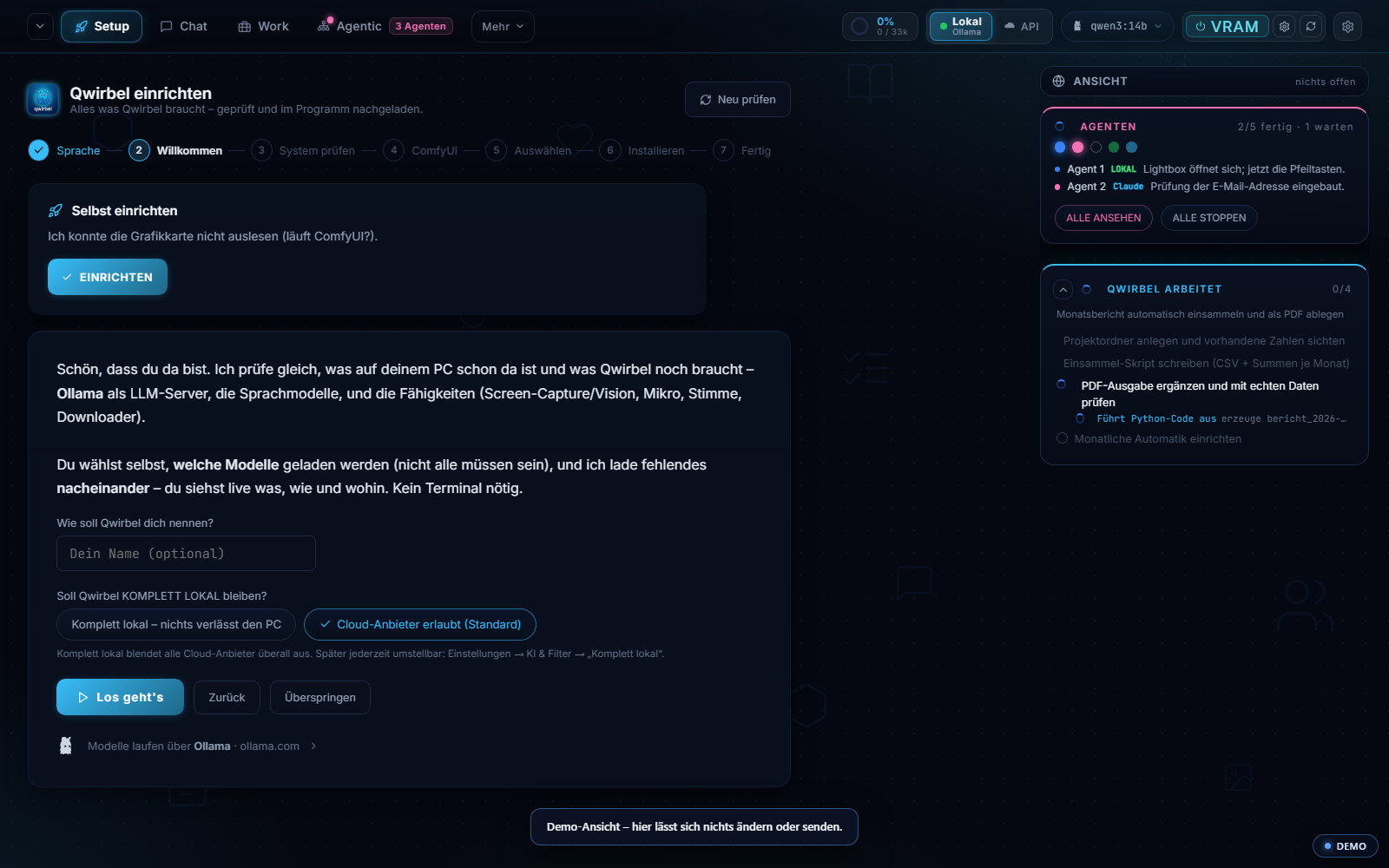
How do I start after installing?
Qwirbel opens the setup assistant: language, welcome, check system, ComfyUI, choose, install, done – seven steps. It first looks at what is already on your machine and then downloads only what is missing, one after another. You watch it live. No terminal needed.
Do I have to install anything myself first?
No. The assistant checks Ollama as the model server, the language models and the extra abilities (screen capture, microphone, voice, downloader) and sets up whatever is missing. What you do not need, you do not have to download – you choose.
What does the “fully local?” question at first start mean?
It decides whether Qwirbel may offer cloud providers at all. Fully local hides them everywhere and blocks every outbound call. The default is “cloud providers allowed”, because many people want to use their own key. Both can be changed later under Settings → AI & filter.
The assistant cannot find my graphics card.
Then the setup window says so and offers “Check again” – usually ComfyUI is running and holding the card. You can re-check any time; there is no need to reinstall.
Getting and switching models
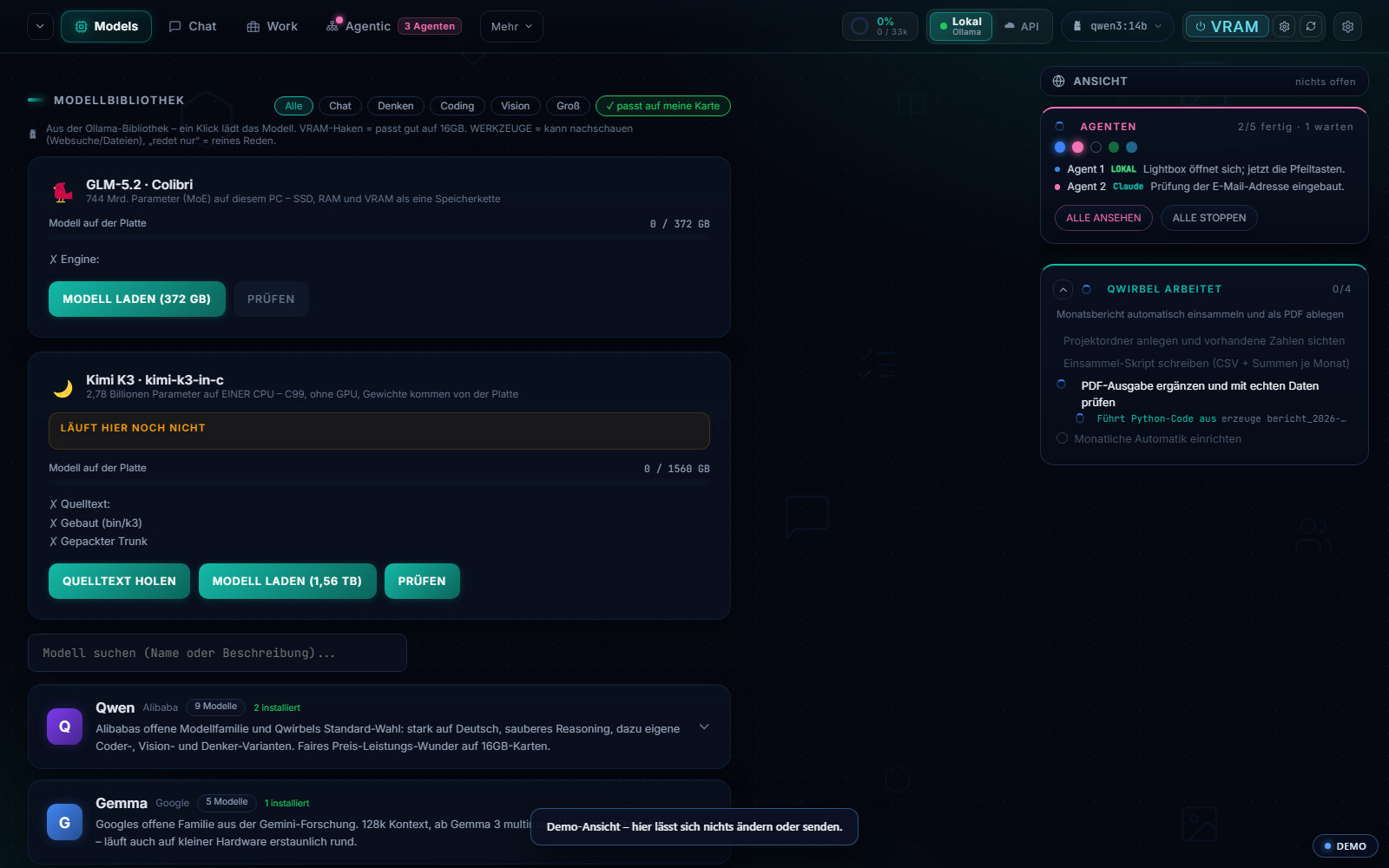
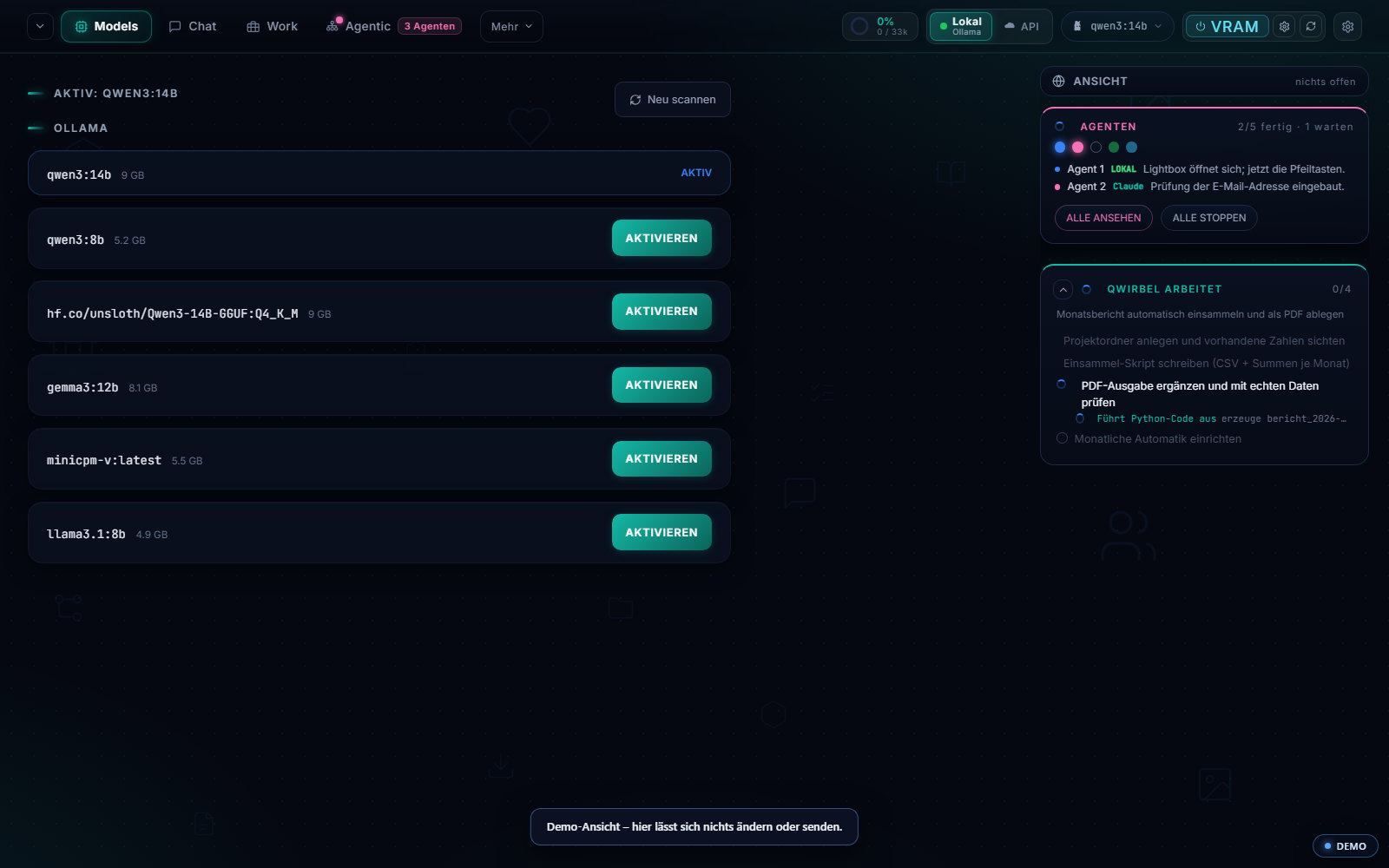
Where do I get a model?
Models → Model library. It lists the Ollama library grouped by family (Qwen, Gemma, Llama …) with a search box. One click downloads the model – nothing to fetch by hand, nothing to unpack.
How do I know whether a model fits my card?
Use the “fits my card” filter at the top. It hides everything that would not run sensibly on your hardware. The other filters (chat, thinking, coding, vision, large) sort by purpose.
What does “does not run here yet” on a model mean?
Exactly that: this model needs more than your machine has. Qwirbel says so openly instead of letting you start a 1.5-terabyte download that will not run afterwards. What the model requires is listed underneath.
What is the difference between “tools” and “talks only”?
“Tools” means the model can go and look things up by itself – web search, reading files, driving programs. “Talks only” means plain answering, no access. That depends on the model, not on Qwirbel.
How do I switch the model Qwirbel works with?
Models → Installed. Everything on disk is listed with its size, the active one is marked. One click on “Activate” switches over. In chat you can additionally pick a different model per conversation.
Can I use my own GGUF files?
Yes. Under Models → Own files you point at your model folder; Qwirbel reads format, size and quantisation itself. Models you already downloaded do not have to be fetched again.
How much disk space do I need?
The program itself is small, the models are not: roughly 5–9 GB per language model, large ones considerably more. Plan for about 100 GB free, ideally on an SSD. The details are under system requirements.
Where are my models – and how do I move them to another drive?
Under Settings → Files & storage you see every folder Qwirbel creates or uses – with its drive, the free space on it and the measured size. Including the ones outside the program folder: the Ollama model store, the ComfyUI checkpoints, the Klecks files. Moving one is a click, and Qwirbel asks first what should happen to the files: take them along and clear the old place, take them along and keep it as a backup, or only change the folder. It calculates before it starts instead of hoping – if the target has too little room, it blocks rather than failing halfway. It copies first, checks every file at the target against the original, and only then clears the old place.
Who is actually doing the computing – and can I add another service?
Settings → Default services. For each job you see the default, what else is standing by, and a dot showing what is really answering right now. The plus adds a service you found – a name or a link is enough, Qwirbel proposes a profile, you change whatever does not fit, and only your click adds it. If the service speaks the common OpenAI interface, it can then do everything a provider can. Nothing is downloaded and nothing is executed – what gets added is a description; you install it yourself, and how is written visibly on the card.
Do I have to start Ollama and the other programs myself?
No. Settings → Autostart lists every program Qwirbel can bring up itself – Ollama, Klecks, ComfyUI, Colibri and Kimi – each with its address and a switch. The dot beside it shows what is really running: looked up, not guessed. On closing, Qwirbel shuts down only what it started itself.
A model I need is not in the library.
Below the model library and the generation library there is a field where you write what you are missing. Qwirbel looks for a matching model; give it an address and it reads that page too. What comes out is a proposal – source, name, role, folder – which you can still change before adding it. In between, Qwirbel checks for itself whether the source really exists and whether the promised files are in it: language models occasionally name a source that sounds plausible and is invented anyway. If there is nothing there, nothing gets added.
Changing the language
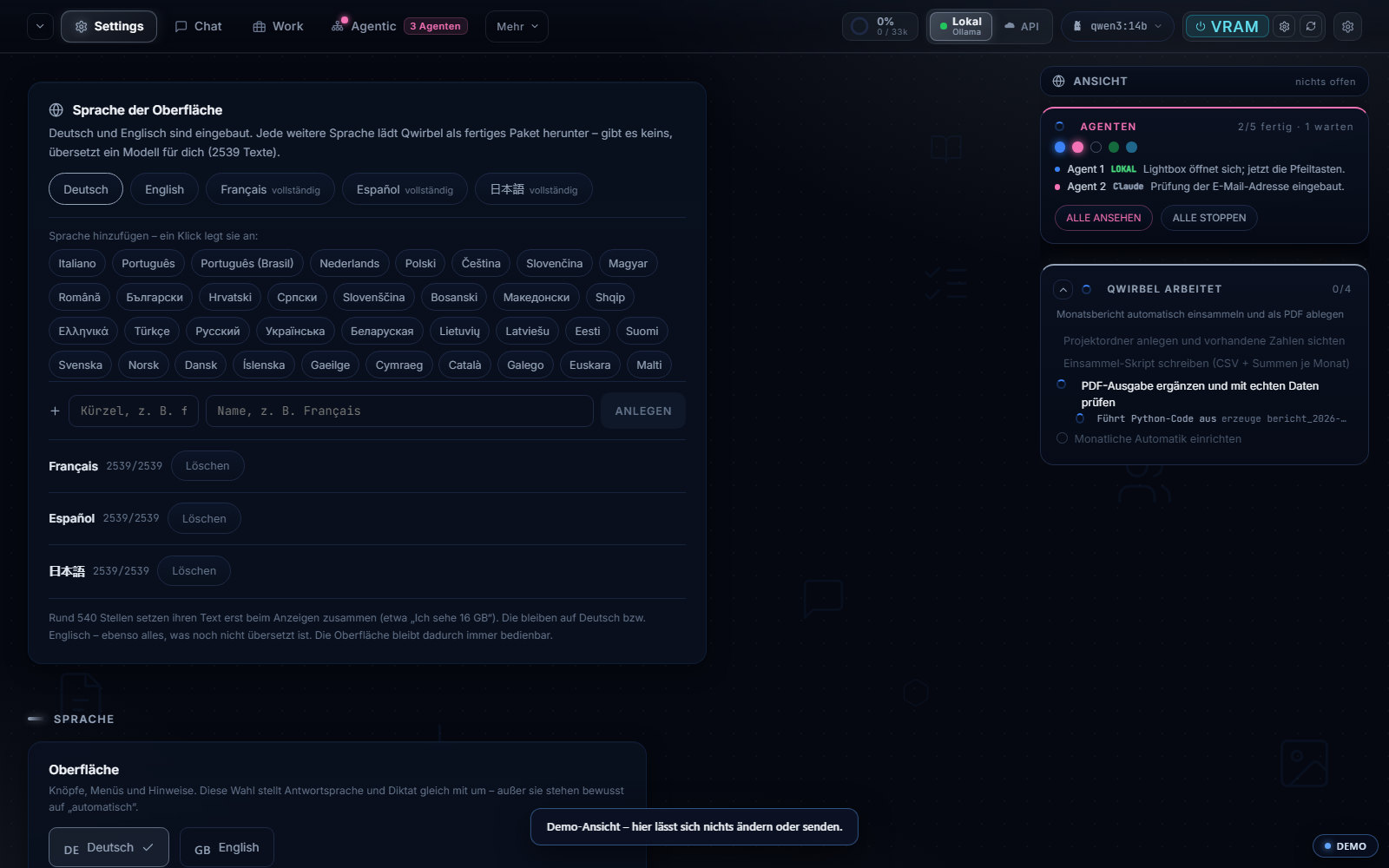
How do I change the interface language?
Settings → Language. German and English are built in. Every further language sits below as a button carrying its own name – one click creates it, and a model translates the interface.
How long does that take, and can I work meanwhile?
Creating it takes a moment; the translating then runs in blocks in the background. You see how many texts are done and can keep working. If it stops, it resumes where it left off – nothing starts over.
What does “complete” next to a language mean?
That every text of the interface is translated – the display shows the state as a number, e.g. 2763/2763. Until it is finished the remaining spots stay in German or English; the interface stays usable throughout.
Why do a few spots stay in German?
Because roughly 600 spots assemble their text only as they are displayed – for instance “I see 16 GB”. Sentences built from parts cannot be translated as finished sentences. The program says so itself rather than hiding it.
My language is not in the list.
Then enter it yourself: code and name in the line below the list, press “Create”. The suggested languages are the convenient path, not a limit. Mind the correct code – Ukrainian, for example, is “uk”, not “ua”.
Will the AI answer in that language too?
By default yes – the choice switches answer language and dictation along with it. If you want them separate, set those two to “automatic” deliberately and pick individually.
Does another language cost extra?
No. There are no language packs and no surcharges. More on AI in every language.
Look and handling
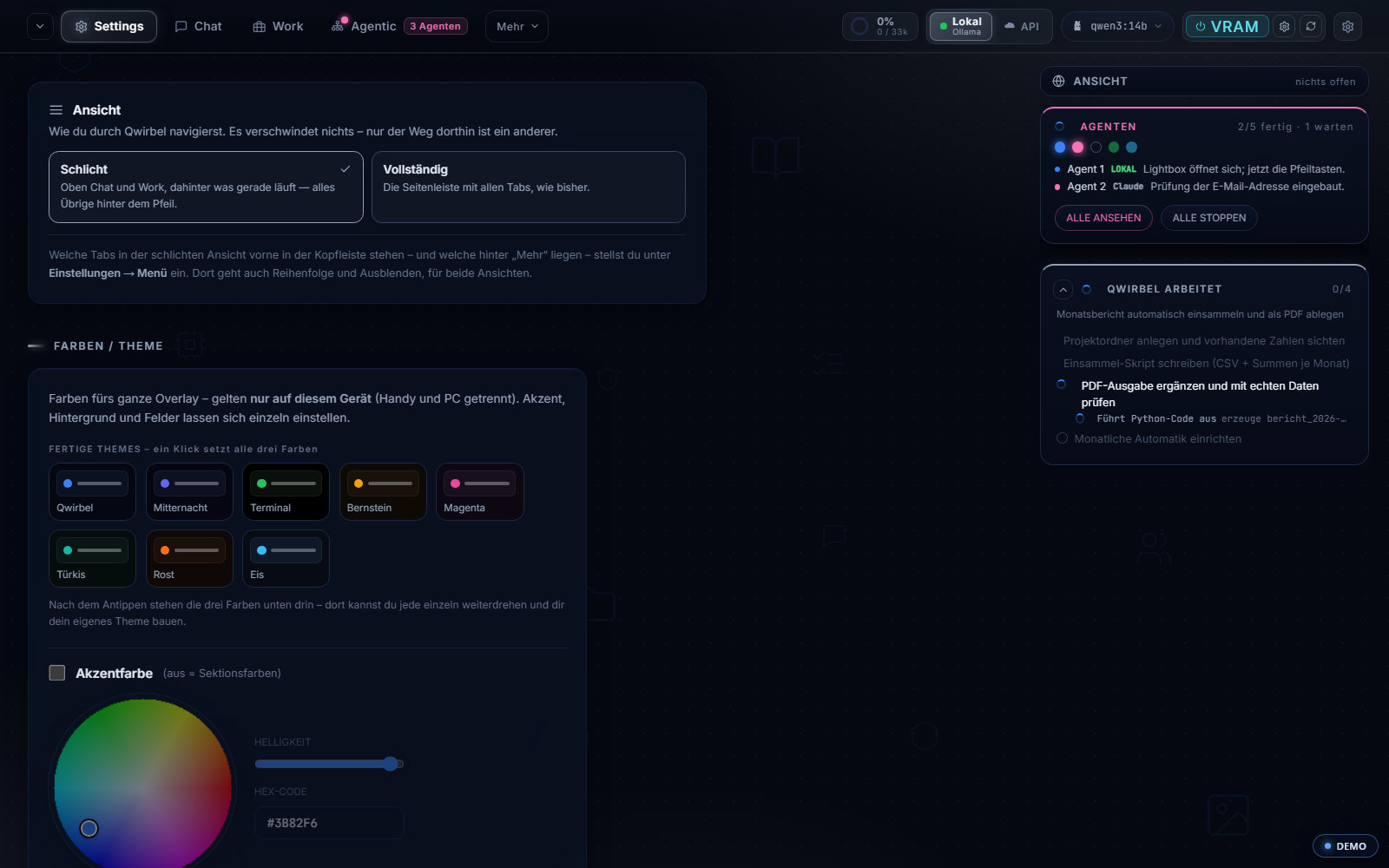
Where did the sidebar with all the tabs go?
Qwirbel starts in the “plain” view: chat and work at the top, whatever is running next to them, everything else behind the arrow. If you want the old view, switch to “full” under Settings → Appearance – the sidebar with all tabs is back. Nothing disappears, only the way there is different.
How do I decide which tabs sit at the top?
Under Settings → Menu. That is where you set the order and hide what you do not need – for both views.
Can I change the colours?
Yes. Under Settings → Appearance there are eight ready themes (Qwirbel, Midnight, Terminal, Amber, Magenta, Turquoise, Rust, Ice). One click sets all three base colours; after that each can be turned further, down to your own hex value. Colours apply per device – phone and PC separately.
The text is too small or too large for me.
The size can be set separately for chat, input line, sidebar, header and content, also under Appearance. That too is per device.
Can I set my own background?
Yes, an image or a video behind the interface. An existing wallpaper library (Wallpaper Engine, ScreenPlay, Lively) is found and copied from.
Tools (MCP)
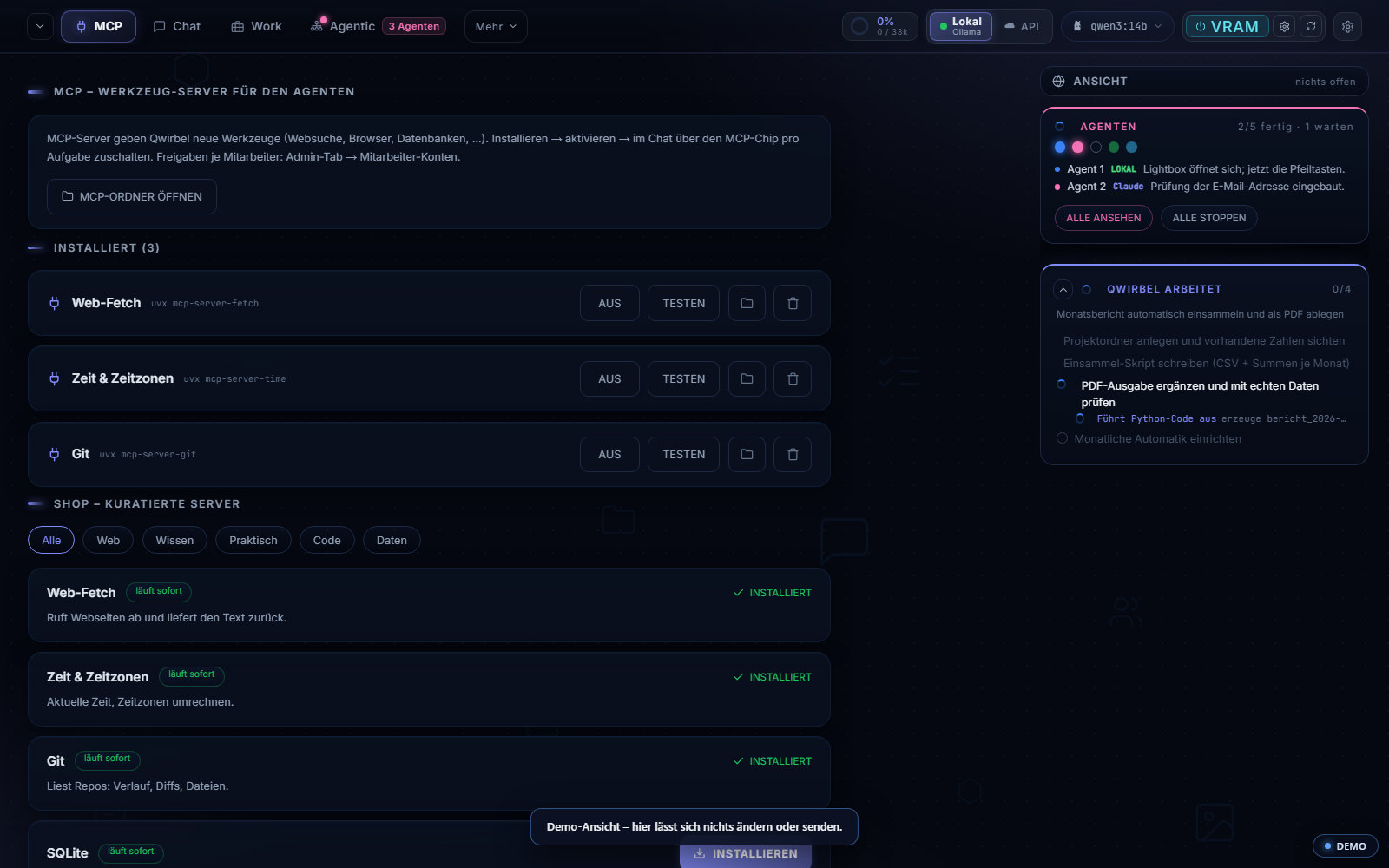
What are MCP servers?
Extra tools for the agent – web search, browser, databases and more. The MCP tab shows the installed ones at the top and a curated shop below, sorted into web, knowledge, practical, code and data.
How do I put one to work?
Three steps, in this order: install → activate → switch on in chat via the MCP chip. The last step is per task – so a job only gets the tools it actually needs.
I installed a server but the model does not use it.
Usually the third step is missing: the server has to be switched on in chat via the MCP chip. Whether it runs at all you check in the MCP tab with “Test” – that reports in plain words instead of failing silently.
Can local models use tools as well?
Yes. From roughly 25 billion parameters a local model reaches for tools by itself in chat. Below 30 billion it gets a core list of about 18 tools instead of the full one – the complete list would be too much at once for small models.
Can Qwirbel fetch a missing tool by itself?
From roughly seventy billion parameters, yes: the model finds the right server, installs it, switches it on and uses it within the same job. Below that Qwirbel tells you in one sentence which one you need in the MCP tab.
Can the agent touch files that are not its own?
No. If a target program is not attached to its interface, that program's existing files are locked for it – enforced in execution, not merely asked for in the prompt. It may create new files; its report then says it was blocked instead of claiming it built something.
What your machine needs
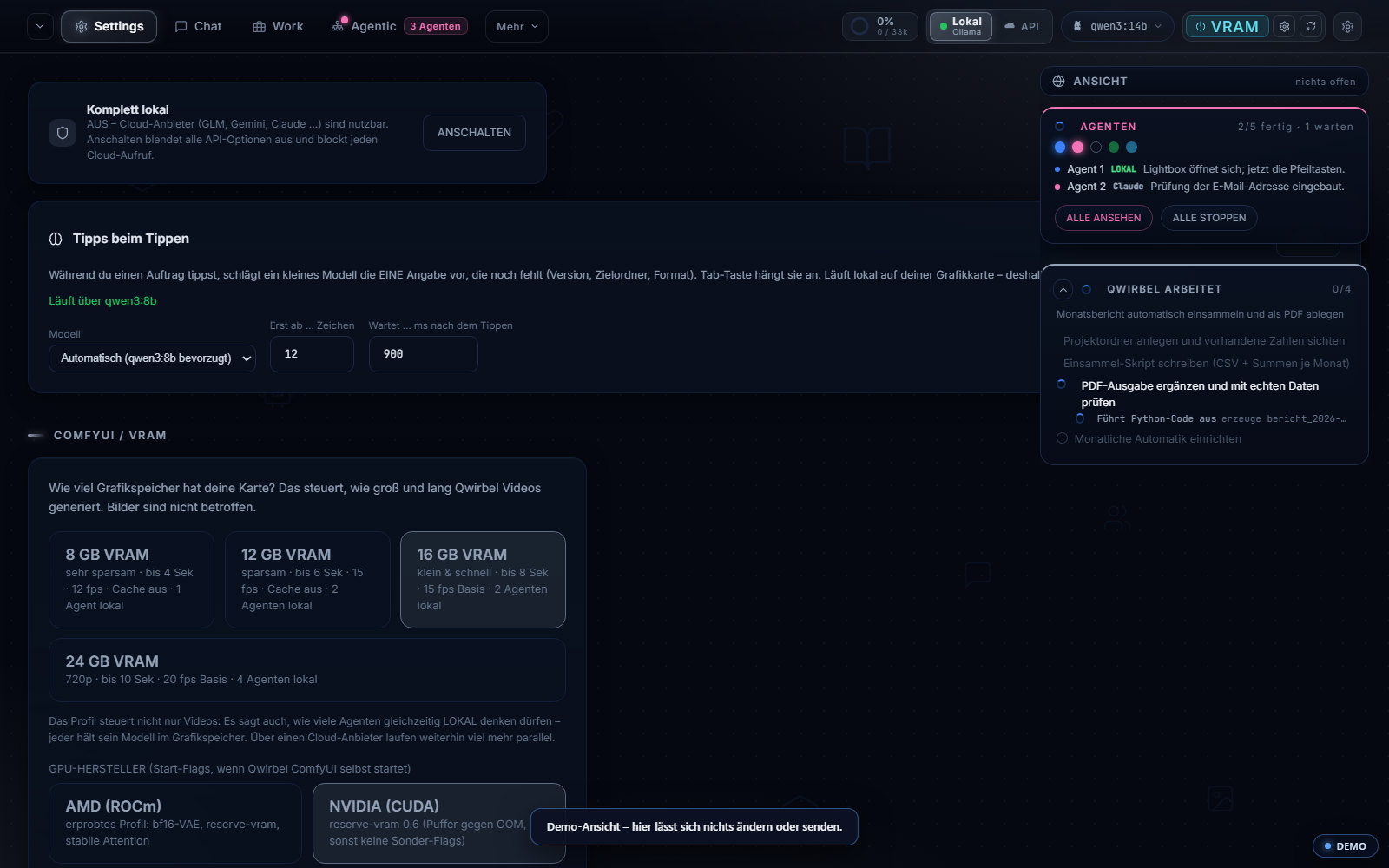
How much graphics memory do I need?
Plain chatting is fine on 6–8 GB. For generating, the profile under Settings → AI & filter decides, and it states what each one gets you: 8 GB very frugal, up to 4 seconds of video, 12 fps, 1 local agent · 12 GB up to 6 seconds, 15 fps, 2 agents · 16 GB up to 8 seconds, 15 fps, 2 agents · 24 GB 720p, up to 10 seconds, 20 fps, 4 agents. Images are not affected by this.
What decides how many agents run at once?
The same profile – every locally thinking agent holds its model in graphics memory. Through a cloud provider far more run in parallel, because nothing sits on your card there.
Does this run on an AMD card?
Yes. Under GPU vendor there are proven starting values for AMD (ROCm) and NVIDIA (CUDA). For images there is also Klecks via Vulkan – so AMD cards run along without a CUDA requirement.
What if my card is simply too small?
Then you enter your own API key (Settings → APIs). In provider mode your graphics card stays free, because nothing is loaded locally. What that looks like is on using a GLM key.
How much RAM and how much swap?
16 GB is the lower bound, 32 GB is comfortable. At 32 GB and below we recommend 60–100 GB of swap – while loading, a model briefly sits in memory twice. It makes nothing faster, it prevents the abort. Details under system requirements.
When something does not work
A model will not load.
Check in the model library whether the model says “does not run here yet” – then it needs more than the machine has. The “fits my card” filter shows at a glance what is left. Otherwise “Rescan” under Models → Installed helps when a file was added afterwards.
Videos abort or stutter.
Then the profile is set too high: pick one step lower under Settings → AI & filter (length, fps and resolution hang off it). The second common cause is too little swap – see above.
After translating, parts of the interface are still German.
Either the language is not finished yet (the display states the count), or it is those roughly 600 spots that assemble their text only as they are displayed. Both are normal and described that way in the program.
An MCP tool is not being used.
First press “Test” in the MCP tab – is the server running? Then check whether it is activated, and finally whether it is switched on in chat via the MCP chip. The third step is the one most often forgotten.
Setup did not find something.
The setup tab has “Check again”. The assistant then looks anew at what is there by now and downloads only what is missing – reinstalling is never necessary.
I cannot find a setting.
Under every settings tab there is a field where you can write what you need – the program then changes it itself. What may be changed per tab is clearly bounded.
Something else is stuck.
Write to us: support. If you like, mention which graphics card you have and which model was active – that usually settles half the question.